¶ SCTP PSP Portal Guide
This guide is for Payment Service Provider (PSP) staff only.
It explains how to sign in to the PSP Portal of the SCTP MIS and how to complete the work the Social Cash Transfer Programme sends to your organisation.
¶ About the PSP Portal
The PSP Portal is the part of the SCTP MIS used by Payment Service Providers. You reach it by signing in with a PSP user account. Once signed in you see only your own organisation's work — never another provider's, and never the programme's internal screens.
Through the portal your organisation:
- supplies beneficiaries' account details when the programme asks for them,
- confirms that those accounts are real and active before a payment,
- receives the payroll, pays beneficiaries and reports back what was paid, and
- looks up any account enrolled with your organisation.
¶ Before You Begin
- You need a PSP user account linked to your organisation. The programme creates it and sends you your username. If you do not have one, contact the programme.
- You need the SCTP MIS web address given to you by the programme.
- Use an up-to-date web browser such as Chrome, Edge or Firefox.
- Every file you exchange with the portal must be a CSV file. Excel files are rejected at every upload point.
¶ Signing In
-
Open your web browser, type the SCTP MIS web address given to you by the programme, and press Enter.
-
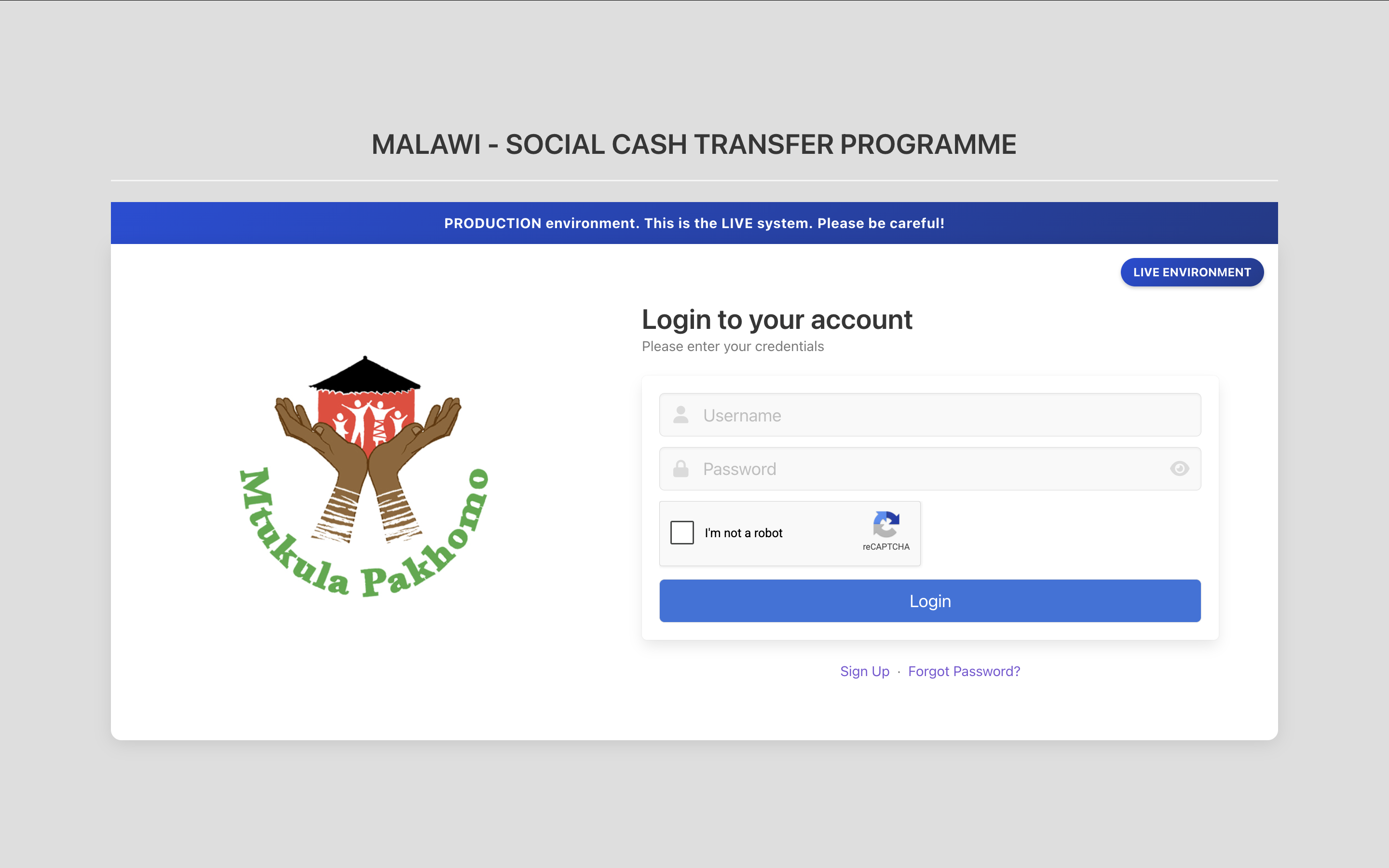
The Login page opens. Confirm that you can see the Mtukula Pakhomo logo and the login box.
-
Look at the coloured banner near the top of the page.
- LIVE ENVIRONMENT means you are working with real programme data. Everything you upload here is real.
- Any other banner (for example TEST ENVIRONMENT) means you are in a practice copy. Never upload real account details or payment reports to a test copy.

-
Type your Username exactly as it was given to you. Your username is not your email address.
-
Type your Password. Click the eye icon if you need to check what you typed — only when nobody else can see your screen.
-
Tick I'm not a robot in the reCAPTCHA box and answer the picture challenge if one appears.

-
Click Login.
-
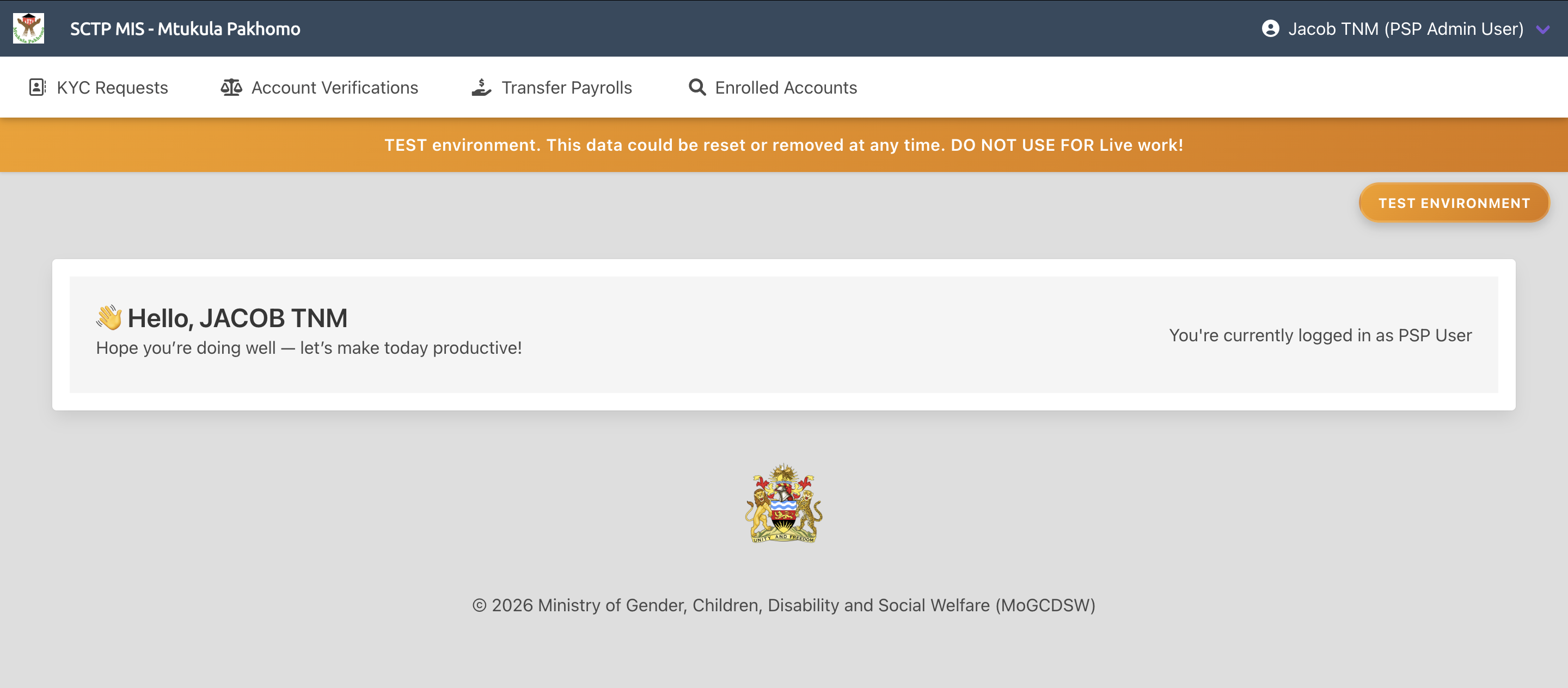
You are taken straight to the PSP Portal. Your organisation's name is shown in the top bar. You do not see the programme's home page — this is expected.
-
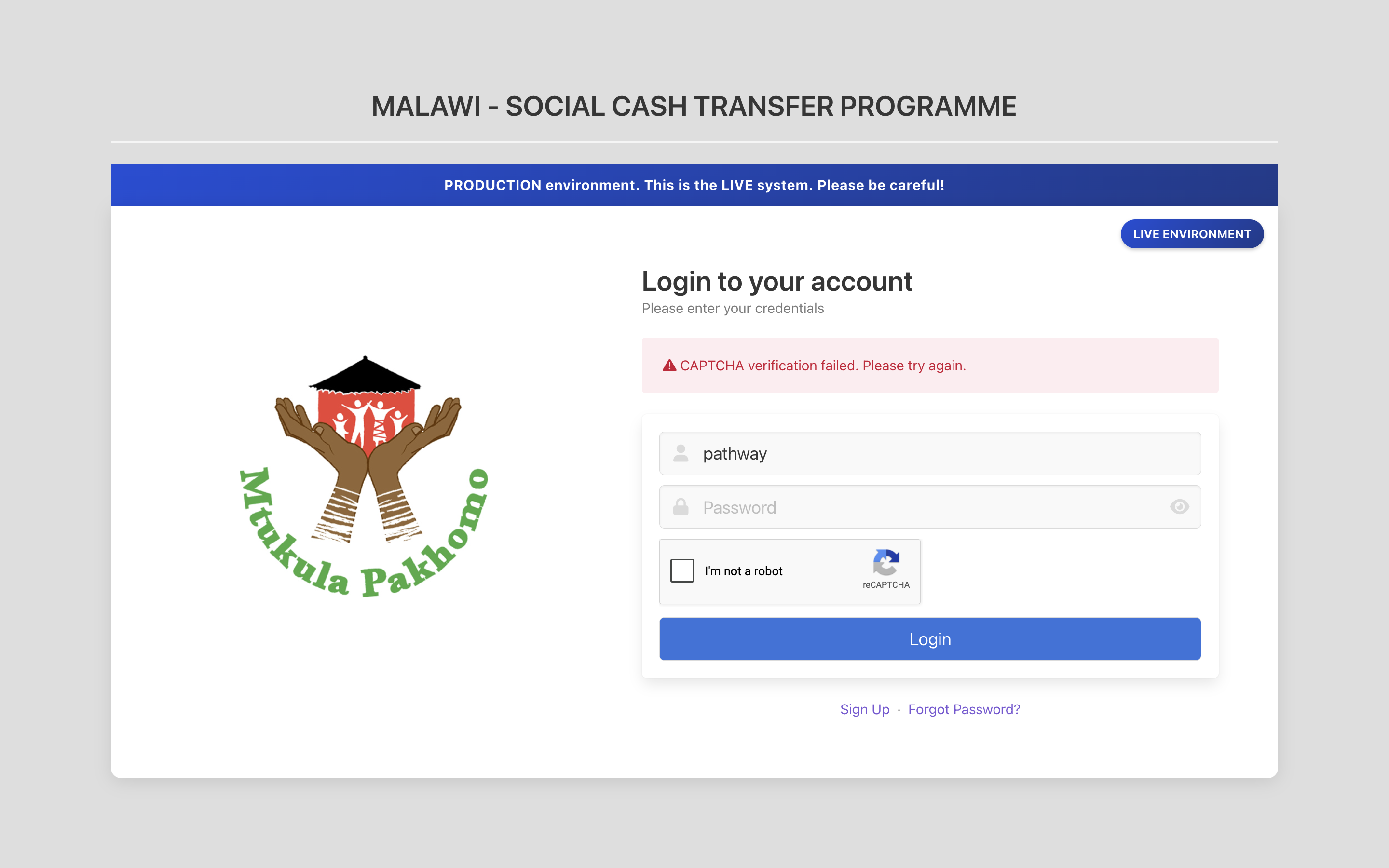
If a red message appears instead, read it and see Common sign-in problems below.
¶ Finding Your Way Around
The portal menu has four work areas. Each has its own page in this guide:
| Menu | What you do there | Guide page |
|---|---|---|
| KYC Requests | Supply account details for the households the programme lists | Responding to KYC Requests |
| Account Verifications | Confirm that beneficiaries' accounts are real and active before a payment | Completing Account Verifications |
| Transfer Payrolls | Download the payroll, pay beneficiaries, and upload the disbursement report | Transfer Payrolls and Disbursement Reports |
| Enrolled Accounts | Look up any account enrolled with your organisation | Searching Enrolled Accounts |
The work runs in this order: supply account details → confirm the accounts → receive the payroll, pay, and report back. You can search enrolled accounts at any time.
PSP administrators also see a PSP Administration menu for their organisation's users and settings.
¶ Your Account
Hover over your name in the top right corner to open the profile menu:
- Settings — update your email address and name. Keep your email address current: password reset links and notifications from the programme are sent there.
- Password — change your password. Type your current password, then a new one of 8 to 15 characters that differs from the current one, and click Update Password.
- Logout — sign out. Always sign out before leaving your computer. Everything done while you are signed in is recorded under your name.
The system also signs you out by itself after a period of inactivity.
¶ Forgotten password
- On the Login page, click Forgot Password?
- Type your Username, type the characters shown in the captcha image, and click Reset.
- Open the email titled SCTP MIS: Account Password Reset Request and click the link in it.
- Set a new password and sign in with it. Resetting your password also unlocks an account locked by failed sign-in attempts.
¶ Common Sign-in Problems
| Message or situation | What to do |
|---|---|
| Invalid username or password | Check for typing errors and that Caps Lock is off. Three failed attempts lock the account |
| This account has been locked. Please reset your password to unlock | Use Forgot Password? to set a new password, or ask the programme to unlock it |
| This account has been disabled | Your account has been deactivated. Contact the programme |
| CAPTCHA verification failed. Please try again. | Complete the reCAPTCHA again and click Login promptly |
| You see the programme's home page instead of the PSP Portal | Your account is not set up as a PSP user. Contact the programme |
| A menu you need is missing | Your role does not include that permission. Ask the programme to review your PSP user profile |
| Reset email never arrives | Check your junk mail folder, then contact the programme to confirm the email address on your account |