¶ Transfer Payrolls and Disbursement Reports
This page is for Payment Service Provider staff only.
You reach these screens by signing in with a PSP user account. You see only your own organisation's account holders.
¶ Overview
A transfer payroll is the instruction to pay — the list of households your organisation is responsible for in a payment cycle, with the amount each is owed and the account it should be paid into.
A disbursement report is what you send back, telling the programme what you actually paid.
This lesson teaches you how to find your payroll, download it, make the payments, and upload the disbursement report.
¶ Purpose
This is where money reaches beneficiaries. Everything before it — registration, enrolment, KYC, verification — exists to produce an accurate payroll.
The disbursement report closes the loop. Without it, the programme cannot reconcile the cycle, cannot close the transfer period, and cannot start the next one.
¶ Who Can Perform This Process
| Task | Permission required |
|---|---|
| Sign in to the PSP Portal | Access to the PSP API |
| View, download and upload against payrolls | Access to the PSP API |
| Download error files | Perform transfer account verifications |
These permissions come with the PSP Administrator role. The role also carries rights to view, download, lock and cancel payrolls, and to upload disbursement reports.
¶ Before You Begin
- You need a PSP user account linked to your organisation.
- The programme must have shared the payroll with you. Nothing appears here until they do.
- Account verification for the period should be complete — see Completing Account Verifications.
- Prepare your disbursement report as a CSV file.
¶ Navigation
Sign in to the SCTP MIS with your PSP user account
→ Transfer Payrolls
¶ Step-by-Step Guide
¶ Part 1 — Finding your payroll
-
Sign in to the SCTP MIS with your PSP user account. You are taken to the PSP Portal.
-
Click Transfer Payrolls.

Screenshot: PSP Portal menu with Transfer Payrolls highlighted.
-
The payrolls page opens, listing the transfer periods shared with your organisation.
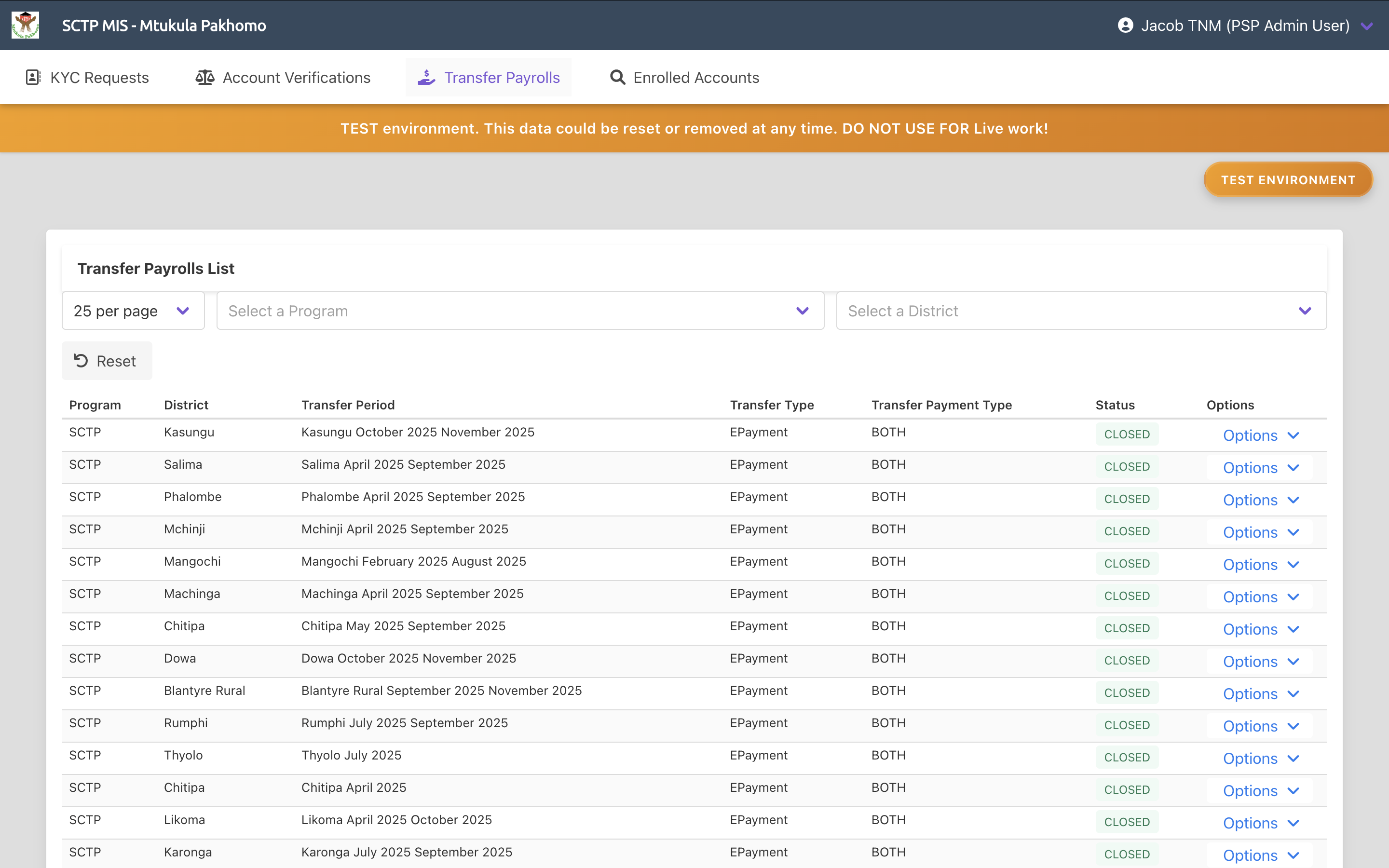
Screenshot: Transfer payrolls list in the PSP Portal.
-
Read the list. Each entry is one payment cycle.
-
You see only your own organisation's account holders. Households paid by other providers are never visible to you.
-
Open the payroll you are working on.
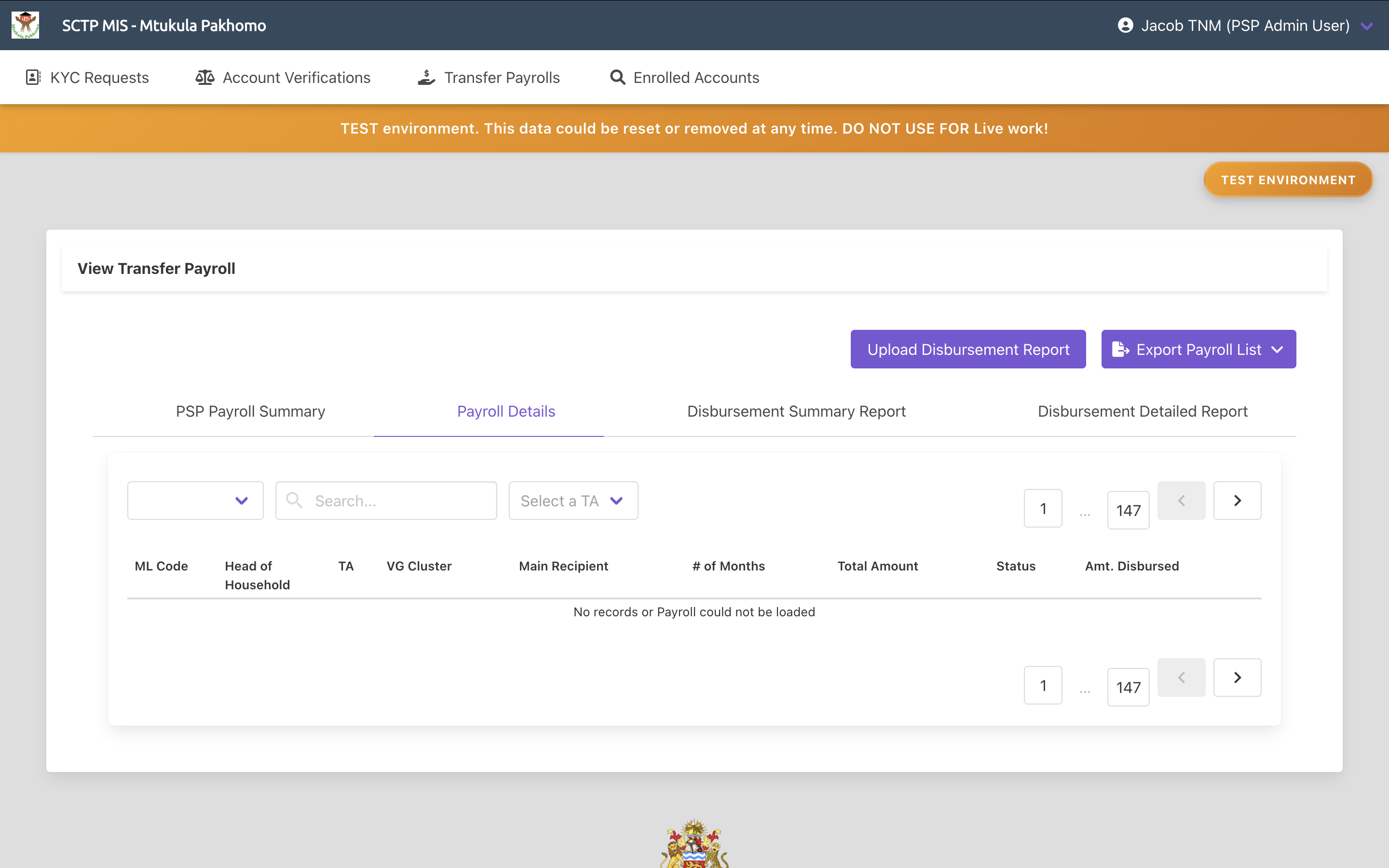
Screenshot: Payroll details page in the PSP Portal.
¶ Part 2 — Reviewing the payroll
-
Read the payroll summary — the number of households and the total amount your organisation is responsible for.
-
View the households on the payroll to see the individual payments.
-
Check the figures against what the programme told you to expect. Raise any significant difference with them before paying, not afterwards.
¶ Part 3 — Downloading the payroll
-
Choose the option to download the payroll.
-
The payroll downloads as a CSV file.
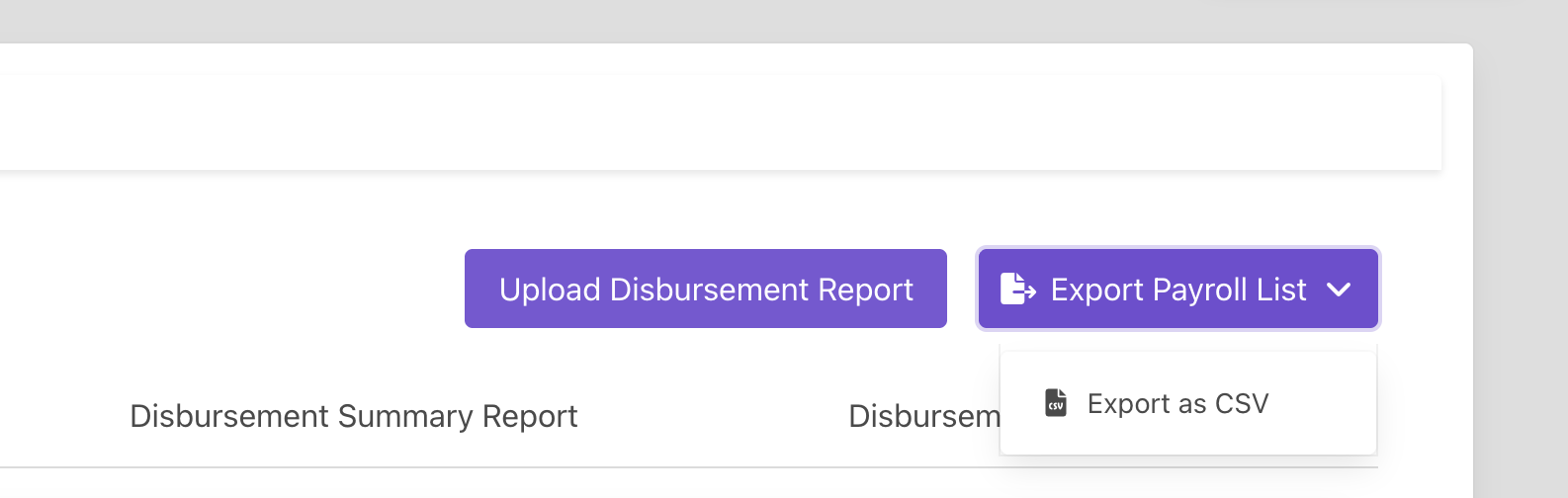
Screenshot: Payroll download option (Export Payroll List) in the PSP Portal.
-
Open the file and check it before processing:
- Does the number of rows match the household count shown on screen?
- Do the account numbers look complete?
- Do the amounts look reasonable?
-
Use this file to make the payments through your own systems.
The file contains personal and financial data about real households. Handle it according to your organisation's data protection obligations.
¶ Part 4 — Making the payments
-
Process the payments through your own systems, following your organisation's normal controls.
-
Record what you actually paid for each household. You will need:
- the household identifier from the payroll,
- the amount actually paid, and
- the date it was paid.
-
Record payments that could not be made, and why. The programme needs to know about these as much as about successful ones.
-
Pay within the agreed window. Payments made outside it cause the programme to raise suspension cases against those households automatically.
¶ Part 5 — Downloading the disbursement report template
-
Return to the payroll in the portal.
-
Choose the option to download the template for the disbursement report.
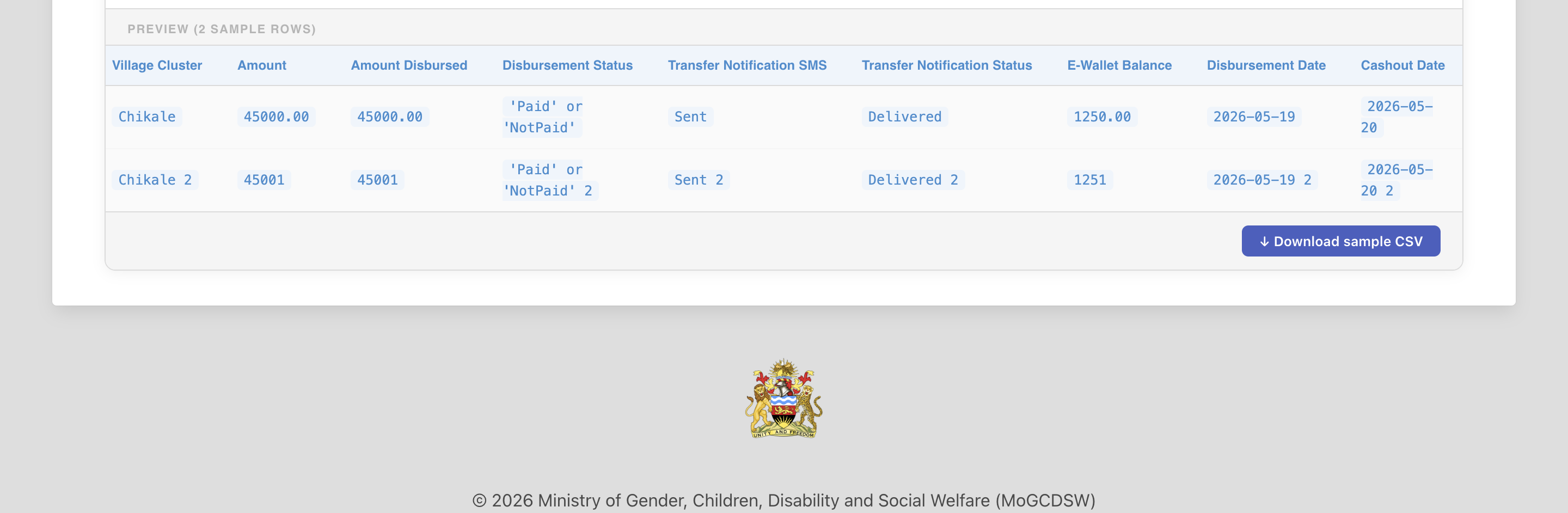
Screenshot: Disbursement report template download.
-
Save the file and work from it directly.
Do not build your own file. One that does not match the expected layout will be rejected.
¶ Part 6 — Uploading the disbursement report
-
Complete the template with what you actually paid.
-
Save it as CSV.
-
Return to the payroll and choose the upload option.
-
Choose your completed file.
-
Start the upload.
-
Wait while the file is read and each record validated.
-
Read the result. If the upload is refused, check the following:
Reason What it means The transfer period cannot be found The reference is wrong. Return to the list The period has not yet been approved for payment The programme has not released it. Wait The period is not at a stage where you can act It is not ready for provider work. Contact the programme The period has been reconciled or closed The cycle is finished. Contact the programme You can only upload while the period is at a payment stage — awaiting payment or awaiting the disbursement report.
¶ Part 7 — Correcting failed records
-
If records failed validation, download the error file.
-
Open it and read what failed and why.
-
Correct those records and upload again.
-
Repeat until no records fail.
¶ Part 8 — Checking the disbursement position
-
Return to the payroll and view the disbursement summary.
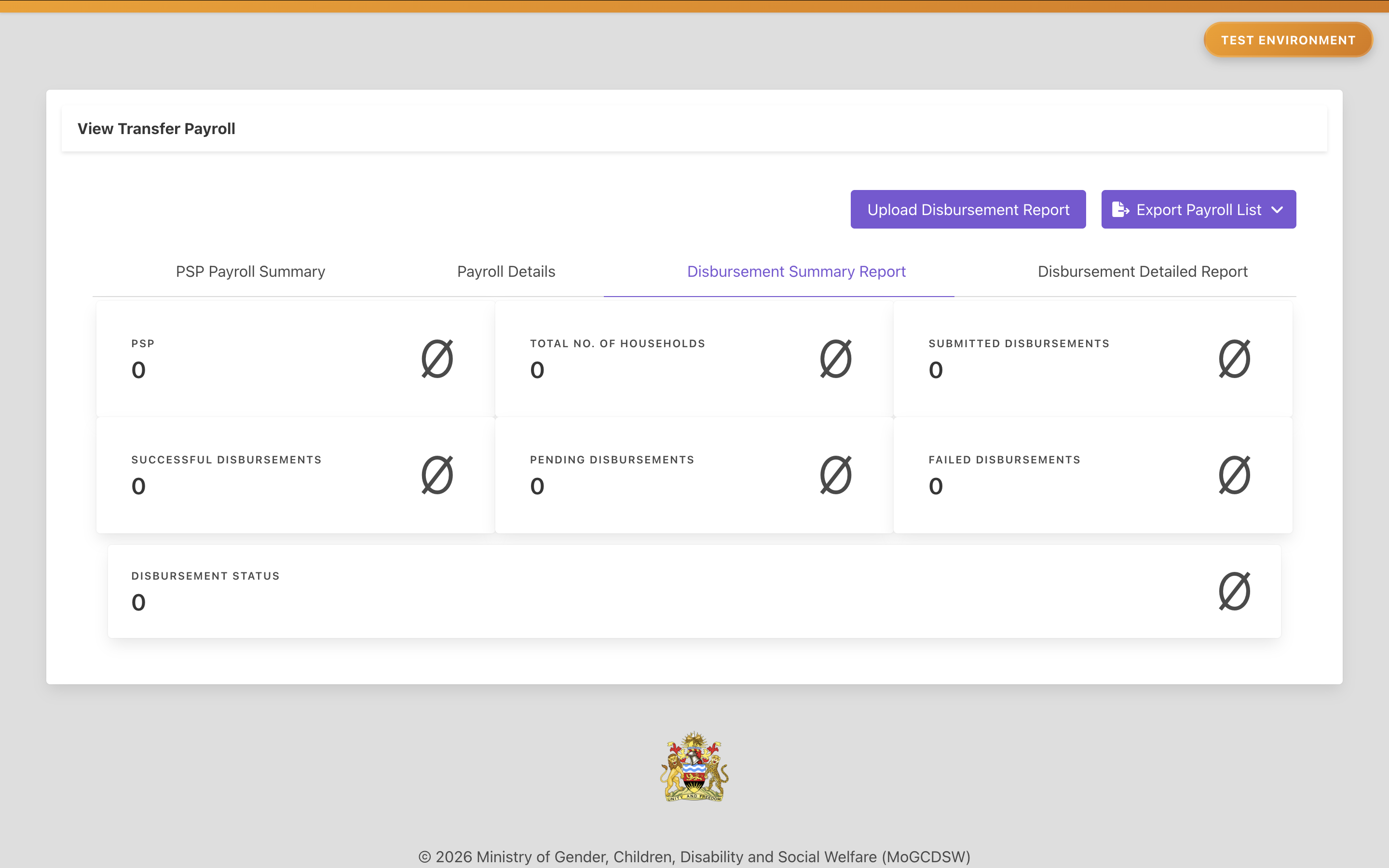
Screenshot: Disbursement summary for a payroll.
-
Read the totals and compare them against your own records.
-
View the individual disbursements to check particular households.
-
Confirm the number reported matches the number you actually paid. A gap means records failed validation and are missing.
-
Tell the programme once your report is complete, so they can reconcile and close the period.
-
Expect follow-up questions. The programme compares what was owed against what you reported, and will come back on differences — see Reconciling Transfers and Closing the Transfer Period.
¶ Required Information
| Item | Description | Required |
|---|---|---|
| Completed report | What you actually paid, based on the downloaded template. Must be a CSV | Yes |
| Amount disbursed | The amount actually paid to each household | Yes |
| Disbursement date | When each payment was made | Yes |
¶ Validation Rules
- The transfer period must exist.
- The period must have been approved for payment. A period still awaiting approval is refused.
- The period must be at a stage where provider work is expected — awaiting payment or awaiting the disbursement report.
- A reconciled or closed period accepts no uploads.
- The file must match the expected layout. Records that fail are listed in the error file.
- Uploading requires access to the PSP API; error files require perform transfer account verifications.
¶ What Happens Next
When the payroll is shared with you
- Your organisation's account holders appear in the portal.
- Notification is sent to your organisation.
- You can download the payroll and begin paying.
When you upload a disbursement report
- Each record is validated and matched to a household on the payroll.
- The amount paid and the payment date are recorded.
- The difference between what was owed and what was paid is calculated for each household.
- Failed records are listed in an error file.
When every provider has reported
- The programme moves the period to reconciliation.
- Differences between amounts owed and amounts paid are resolved.
- The programme approves the reconciliation and closes the period.
What happens to differences
| Situation | Effect on the household |
|---|---|
| Paid exactly what was owed | Nothing further |
| Paid less than owed | The shortfall is added to the household's next payment as arrears |
| Paid more than owed | The excess is deducted from the household's next payment |
| Paid outside the transfer window | A suspension case is raised automatically for the programme to review |
¶ Common Errors
| Message or situation | What it means and what to do |
|---|---|
| The upload is refused | Check the period's stage. You can only upload while it is at a payment stage |
| The period is reconciled or closed | The cycle is finished. Contact the programme |
| The period has not been approved | The programme has not released it for payment yet. Wait |
| Records failed validation | Download the error file, correct those records, and upload again |
| No payrolls appear | The programme has not shared one with your organisation yet |
| Fewer households than expected | Households without valid, verified accounts are excluded from the payroll |
| The Transfer Payrolls menu is missing | Your PSP user profile may be inactive or missing a permission |
| You see another organisation's households | Report this to the programme immediately |
| The disbursement summary does not match your records | Some records may have failed validation. Check the error file |
| The programme queries a payment you made | Compare against the payroll you downloaded and your own records |
¶ Tips
- Check the payroll before paying. Once payments are made, a problem in the file is far harder to unpick.
- Compare the row count against the household count on screen. A mismatch means the file is incomplete.
- Raise differences before paying, not after. The programme can correct a payroll; it cannot recall a payment.
- Pay within the agreed window. Payments outside it automatically raise suspension cases against those households.
- Always work from the downloaded template for the disbursement report.
- Report unsuccessful payments too. A household missing from your report looks like an omission rather than a failed payment.
- Upload promptly. The programme cannot reconcile or close the period until every provider has reported.
- Keep the payroll and your report together. They are your record of the cycle and the basis for answering queries.
- Expect underpayments and overpayments to correct themselves in the next cycle, provided the period is properly closed.
¶ Related Processes
- Completing Account Verifications — must be finished before the payroll is produced
- Responding to KYC Requests — where the account details came from
- Searching Enrolled Accounts — to look up accounts your organisation holds
- Generating and Submitting Payrolls to PSPs — the programme-side view of sharing the payroll
- Reconciling Transfers and Closing the Transfer Period — what the programme does with your report