¶ Completing Account Verifications
This page is for Payment Service Provider staff only.
You reach these screens by signing in with a PSP user account. You see only your own organisation's work, and programme staff do not have access to them.
¶ Overview
Account verification asks your organisation to confirm that the accounts held for beneficiary households are real, correctly named and active — before the programme sends any money.
This lesson teaches you how to find verification requests, download the account list and template, complete it, upload your confirmations, and correct records that fail.
¶ Purpose
An electronic payment fails, or reaches the wrong person, if an account number or name is wrong. Verification is the last check before money moves.
It matters to your organisation too. Payments into closed or dormant accounts create reconciliation work and unhappy beneficiaries, and both fall to you.
¶ Who Can Perform This Process
| Task | Permission required |
|---|---|
| Sign in to the PSP Portal | Access to the PSP API |
| View verification lists | View transfer account verifications |
| View the households to verify | Request transfer account verifications |
| Download templates and error files, and upload results | Perform transfer account verifications |
These permissions come with the PSP Administrator role.
¶ Before You Begin
- You need a PSP user account linked to your organisation.
- The programme must have submitted accounts for verification. Until they do, nothing appears here.
- You will need access to your own account records to confirm each account.
- Prepare your response as a CSV file. Excel files are rejected.
¶ Navigation
Sign in to the SCTP MIS with your PSP user account
→ Account Verifications
¶ Step-by-Step Guide
¶ Part 1 — Finding verification requests
-
Sign in to the SCTP MIS with your PSP user account. You are taken to the PSP Portal.
-
Click Account Verifications.

Screenshot: PSP Portal menu with Account Verifications highlighted.
-
The verifications page opens, listing the requests sent to your organisation.
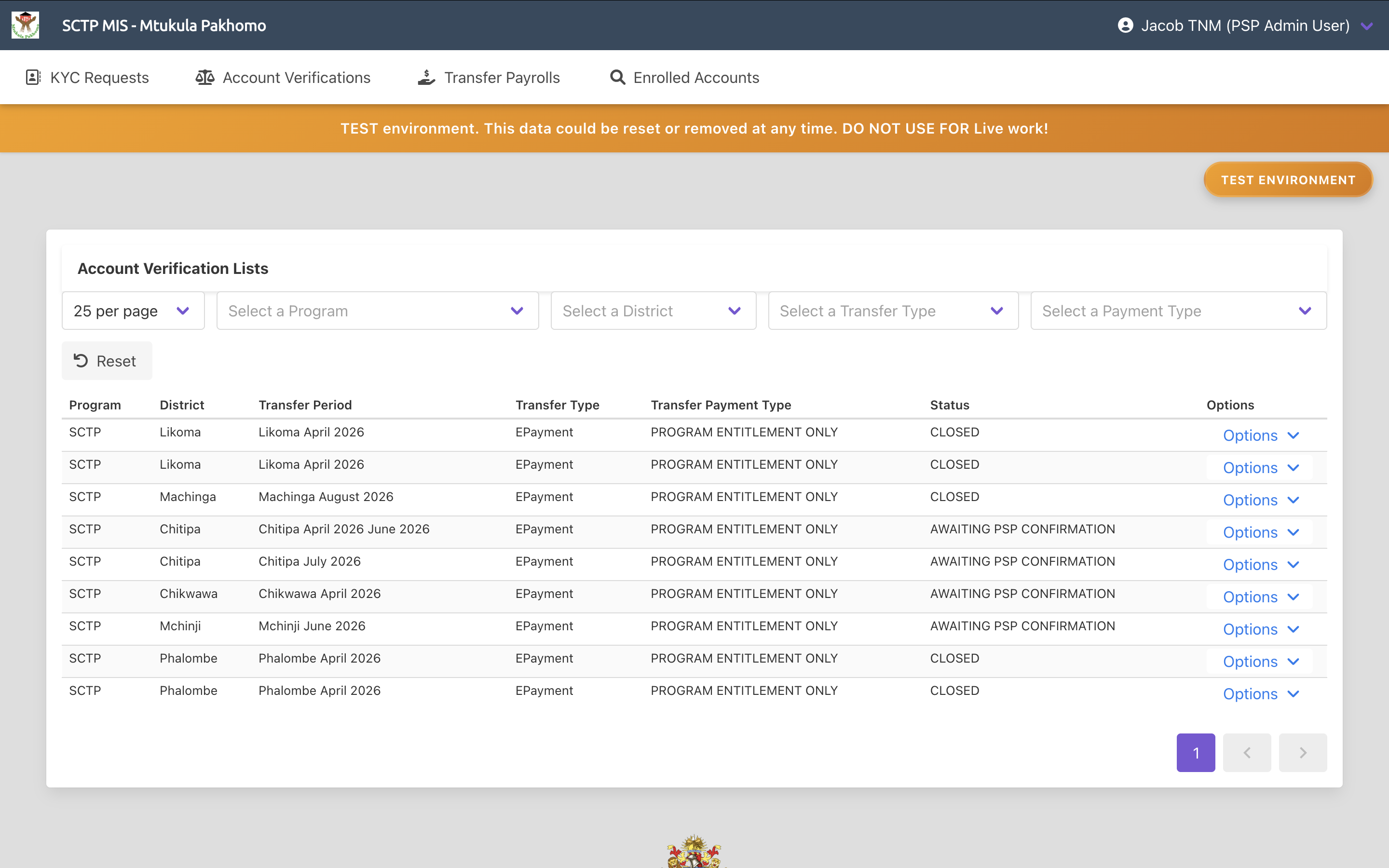
Screenshot: Account verifications list in the PSP Portal.
-
Read the list. Each entry corresponds to a transfer period whose accounts need confirming.
-
You see only your own organisation's lists.
¶ Part 2 — Opening a verification request
-
Open the request you are working on.
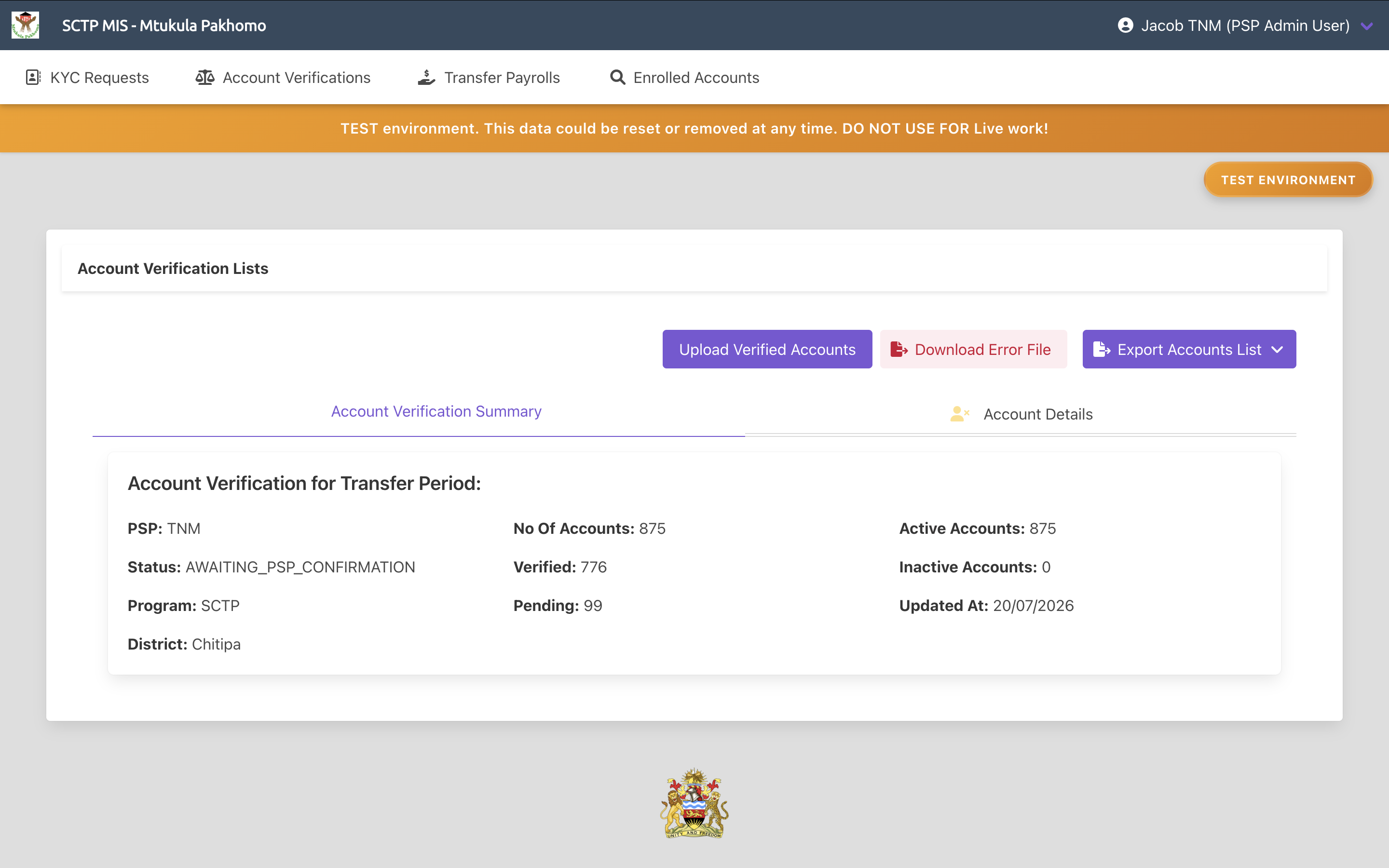
Screenshot: Account verification details in the PSP Portal.
-
Read the summary. It shows how many accounts you have been asked to verify and how many remain outstanding.
-
View the households to verify to see the individual accounts.
-
Check the summary figures for your organisation:
Figure What it tells you Number of accounts How many you were asked to verify Accounts verified How many you have confirmed Accounts pending How many are still outstanding Active accounts Those you confirmed as active Inactive accounts Those you confirmed as no longer active Accounts pending is what the programme is waiting for. The transfer period cannot move on until it reaches zero.
¶ Part 3 — Downloading the template
-
Choose the option to download the template for the request.
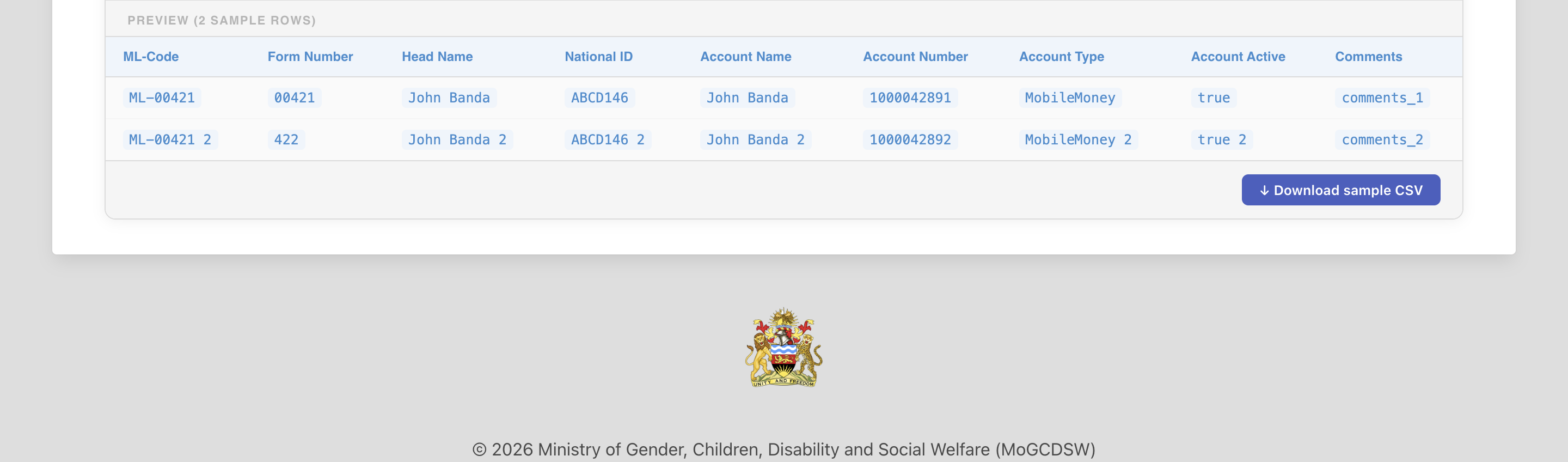
Screenshot: Template download option on an account verification.
-
Save the file and open it.
-
Work from this file directly. It lists exactly the accounts you have been asked to confirm.
Do not build your own file. One that does not match the expected layout will be rejected.
¶ Part 4 — Confirming each account
-
For each account on the list, check your own records and confirm:
- whether the account exists,
- whether the account name matches, and
- whether the account is active or inactive.
-
Be honest about inactive accounts. Marking a dormant account as active means a payment that never reaches the beneficiary, and a reconciliation problem for you later.
-
Where an account number is wrong, say so rather than guessing at a correction. The programme will raise a KYC update to collect the right details.
-
Save the completed file as CSV.
¶ Part 5 — Uploading your confirmations
-
Return to the request in the portal and choose the upload option.
-
Choose your completed CSV file.
-
Start the upload.
-
Wait while the file is read and each record validated.
-
Read the result:
- On success, the system confirms how many account verifications were staged, for example Successfully staged 512 account verifications.
- If the file is an Excel file, the system responds Excel files are not supported. Please upload the file in CSV format.
- If the file has no valid name, the system responds Invalid file name.
- If the file cannot be read, a parsing failure is reported with the reason.
-
If you have already completed verification for this period, the system responds Cannot upload more accounts. Contact the programme if you have further information.
¶ Part 6 — Correcting failed records
-
If records failed validation, download the error file for the request.

Screenshot: Error file download on an account verification.
-
Open it and read what failed and why.
-
Correct those records in your source data.
-
Upload the corrected file. Uploading again replaces the previous file for the request.
-
Repeat until no records fail.
¶ Part 7 — Confirming you are finished
-
Return to the request and check the summary figures.
-
Confirm accounts pending has reached zero for your organisation.
-
Until it does, the programme cannot close the verification, and the transfer period cannot move to payment. If you are waiting on information internally, tell the programme rather than leaving them to guess.
-
Once the programme closes the verification, the final payroll is generated and shared with you — see Working with Transfer Payrolls and Disbursement Reports.
Only households with valid, verified accounts reach that payroll.
¶ Required Information
| Item | Description | Required |
|---|---|---|
| Completed file | Your confirmations, based on the downloaded template. Must be a CSV | Yes |
| Account confirmation | Whether each account exists and its name matches | Yes |
| Active status | Whether each account is active or inactive | Yes |
¶ Validation Rules
- The file must be a CSV. Excel files are rejected with Excel files are not supported. Please upload the file in CSV format.
- The file must have a valid name. Otherwise: Invalid file name
- The file must be readable and match the expected layout. A parsing failure is reported with the reason.
- A completed verification accepts no further uploads. The system responds Cannot upload more accounts.
- Your organisation must be valid. Otherwise: Invalid Transfer Agency found
- The verification list must exist. Otherwise: Invalid Account Verification List
- Uploading again replaces the previous file for the request.
¶ What Happens Next
When you upload
- The file is stored against your organisation's verification list for the period.
- Each record is validated and the confirmations are staged.
- The counts of verified, pending, active and inactive accounts update.
When every account is verified
- Your organisation's pending count reaches zero.
- Once all providers have finished, the programme can close the verification.
When the programme closes the verification
- The final payroll is generated for the transfer period.
- Only households with valid, verified accounts are on it.
- Households whose accounts could not be verified are excluded from that payment cycle.
- The payroll is then shared with you.
Why your response matters
The programme cannot proceed while any account is pending. A delay here delays payment to beneficiaries in your area.
¶ Common Errors
| Message or situation | What it means and what to do |
|---|---|
| Excel files are not supported. Please upload the file in CSV format. | Save the file as CSV and upload again |
| Invalid file name | The file has no usable name. Rename it and try again |
| Cannot upload more accounts | Verification is already complete for this period. Contact the programme |
| Invalid Transfer Agency found | Your PSP user profile may be misconfigured. Contact the programme |
| Invalid Account Verification List | The request reference is wrong. Return to the list and open it again |
| File parsing failed | The layout does not match the template. Download it again and work from it |
| Failed to upload verification file | The upload did not complete. Check the file and try again |
| No verification requests appear | The programme has not submitted accounts yet. Contact them |
| The Account Verifications menu is missing | Your PSP user profile may be inactive or missing a permission |
| Accounts pending is not falling after uploading | Some records may have failed. Download the error file and check |
| You see another organisation's accounts | Report this to the programme immediately |
¶ Tips
- Always work from the downloaded template. Providers who build their own file are the main source of failed uploads.
- Report inactive accounts honestly. A payment into a dormant account becomes your reconciliation problem, not the programme's.
- Do not guess corrections to account numbers. Flag the problem and let the programme raise a KYC update.
- Watch the pending count, not the verified count. Pending is what blocks the programme.
- Respond within the agreed working days. The whole payment cycle waits on this step.
- Tell the programme if you are delayed. They cannot see your internal position and will otherwise assume you have stopped.
- Check the error file after every upload, even one that appears to succeed.
- Keep a copy of what you uploaded as your record of what was confirmed and when.
¶ Related Processes
- Responding to KYC Requests — where the account details being verified were first supplied
- Working with Transfer Payrolls and Disbursement Reports — what follows once verification closes
- Searching Enrolled Accounts — to look up accounts your organisation holds
- Verifying Beneficiary Accounts with PSPs — the programme-side view of this process