¶ Responding to KYC Requests
This page is for Payment Service Provider staff only.
The PSP Portal is a separate area of the SCTP MIS. You reach it by signing in with a PSP user account, and you see only your own organisation's work. Programme staff do not have access to these screens, and you do not have access to theirs.
¶ Overview
A KYC request asks your organisation to supply account details for a list of beneficiary households, so the programme can pay them electronically.
This lesson teaches you how to find requests sent to you, download the household list, complete it, upload the account details, and deal with records that fail validation.
¶ Purpose
The programme cannot pay a household electronically without a valid account number held with a registered provider. Your organisation holds those account details.
The KYC request is how they are collected — formally, against a named list of households, with a record of what was supplied and by whom.
¶ Who Can Perform This Process
| Task | Permission required |
|---|---|
| Sign in to the PSP Portal | Access to the PSP API |
| View KYC requests, download lists and error files | Post KYC results |
| Upload account details | Access to the PSP API |
These permissions come with the PSP Administrator role. If you cannot see the KYC Requests menu, contact the programme and ask them to review your PSP user profile.
¶ Before You Begin
- You need a PSP user account linked to your organisation. The programme creates this — see Managing PSP User Profiles.
- The programme must have raised a KYC request covering your organisation.
- You will need the account details your organisation holds for the households listed.
- Prepare your response as a CSV file. Excel files are rejected.
¶ Navigation
Sign in to the SCTP MIS with your PSP user account
→ You are taken to the PSP Portal automatically
→ KYC Requests
¶ Step-by-Step Guide
¶ Part 1 — Signing in and finding your requests
-
Open the SCTP MIS web address in your browser.
-
Sign in with your PSP username and password.
-
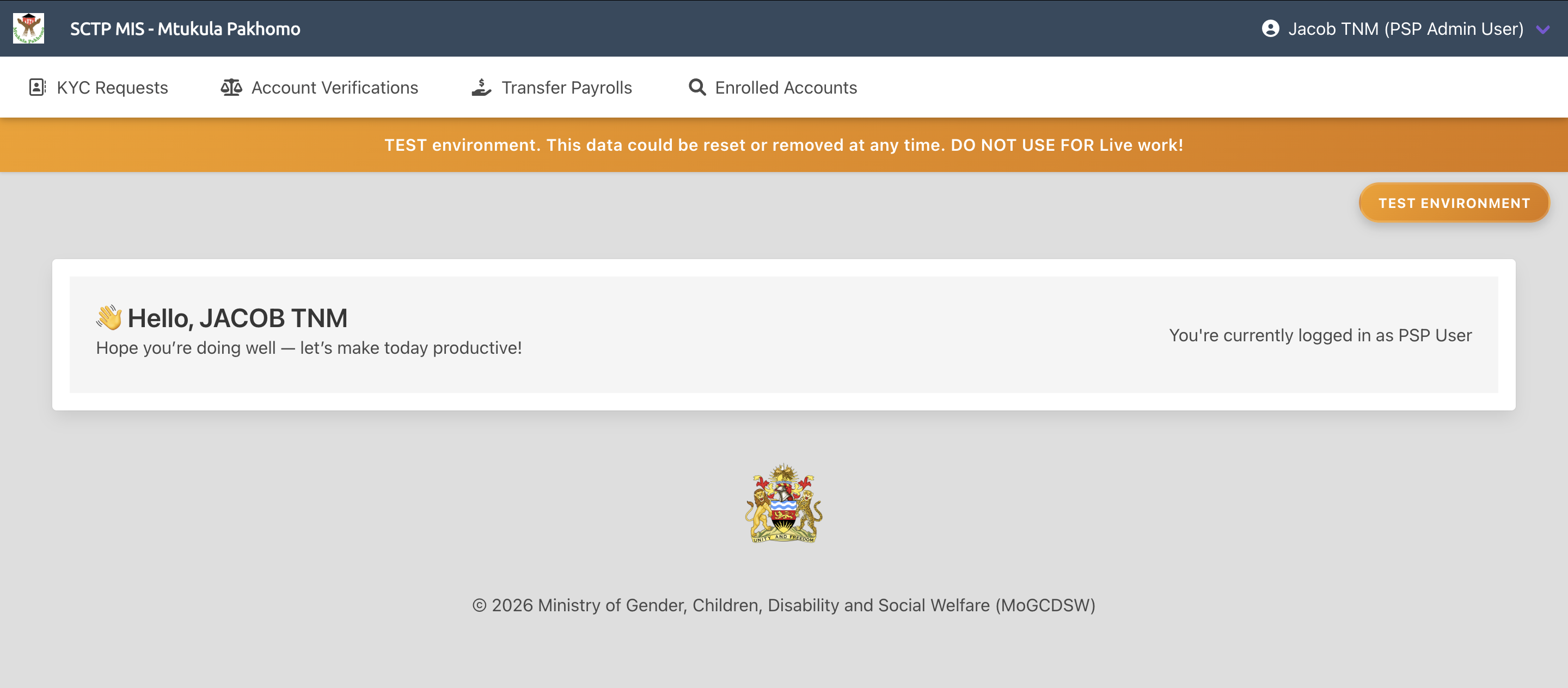
You are taken straight to the PSP Portal. You do not see the standard programme home page — this is expected.
Screenshot: PSP Portal home page after signing in.
-
Look at the menu. It contains four areas: KYC Requests, Account Verifications, Transfer Payrolls and Enrolled Accounts.

Screenshot: PSP Portal menu bar.
-
Click KYC Requests.
-
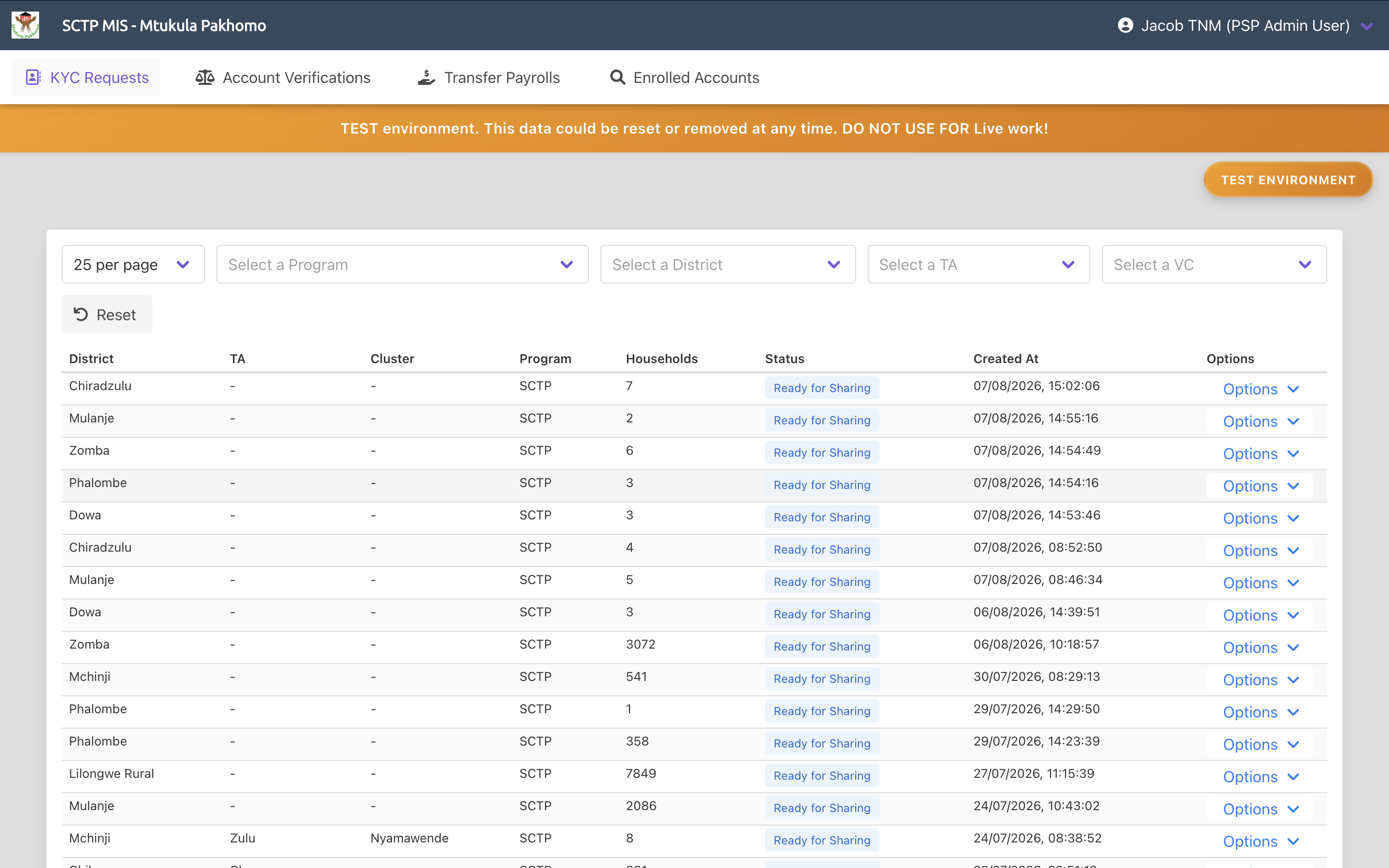
The KYC requests page opens, listing requests sent to your organisation.
Screenshot: KYC requests list in the PSP Portal.
-
You see only requests for your own organisation. Other providers' requests are never visible to you.
¶ Part 2 — Opening a request
-
Click a request to open it.
Screenshot: KYC request details page.
-
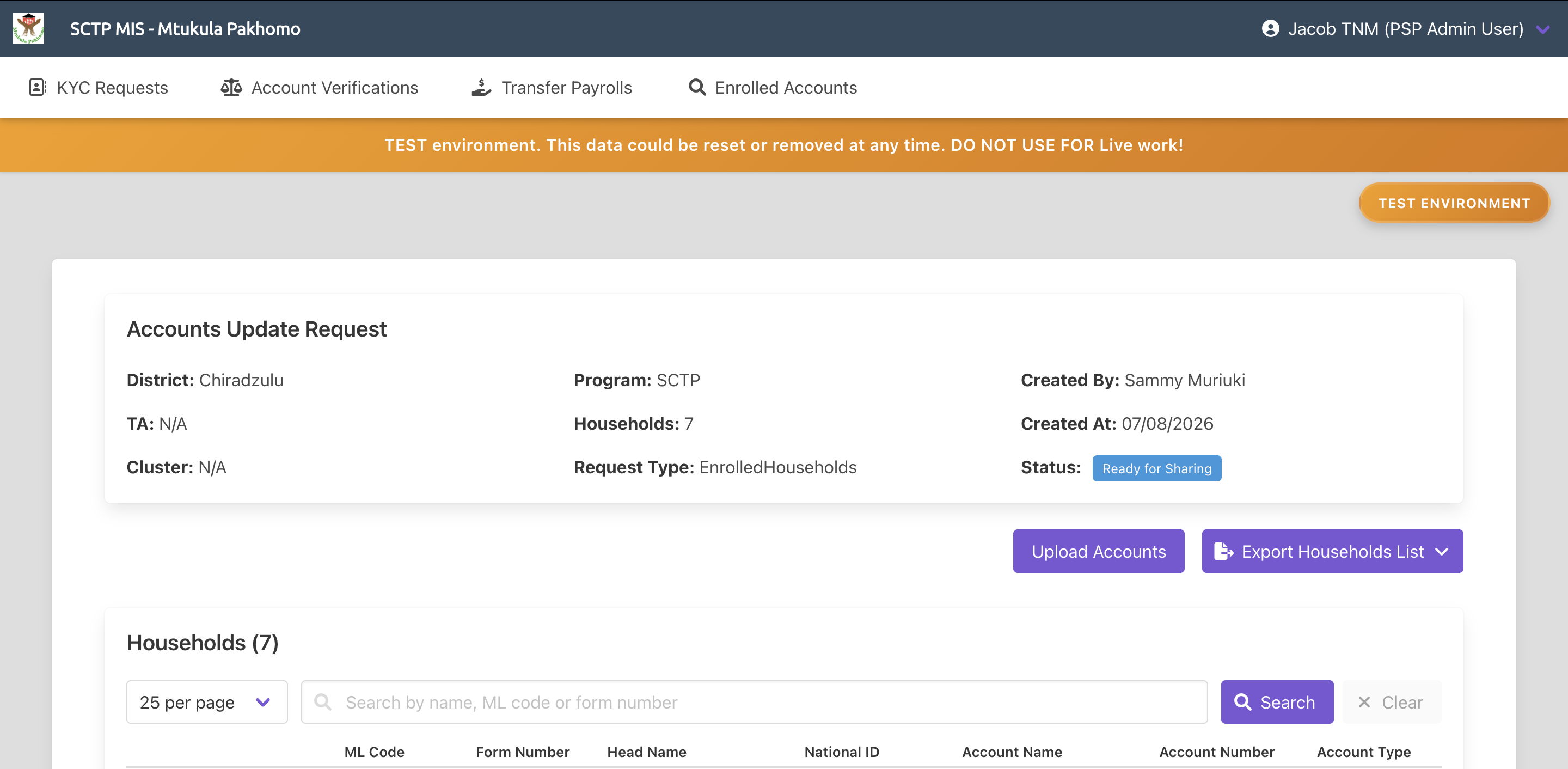
Read the request details — the programme, the district and areas it covers, and the number of households involved.
-
Check whether you can still upload against this request.
If the request has already been completed, the system responds Cannot upload more accounts. If it is still open, it responds More accounts can be uploaded for this KYC Request.
¶ Part 3 — Downloading the household list
-
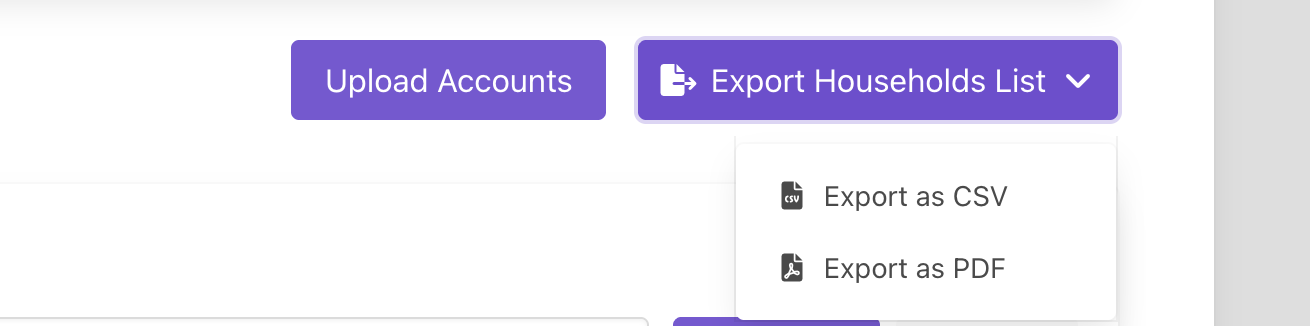
Choose the download option and select the format you need:
Format Use it for CSV Working with the data in a spreadsheet and preparing your response PDF A printed list for branch staff or field collection
Screenshot: CSV and PDF download options on a KYC request.
-
Save the file.
-
Open the CSV and work from it directly. It identifies exactly which households the programme needs account details for.
Always work from the downloaded file rather than building your own. A file that does not match the expected layout will fail.
¶ Part 4 — Completing the account details
-
For each household on the list, record the account details your organisation holds:
- the account name,
- the account number, and
- the account type — mobile money or bank account.
-
Check each account number is complete.
Mobile wallet numbers must be the full 12 digits. A partial number causes the household to be excluded from payment later, and that finding cannot be waived by the programme.
-
Check the account name matches the person the programme expects to be paid. A mismatch means money may reach the wrong person.
-
Watch for duplicate account numbers across households. The same account against two households means one is paid twice and the other not at all.
-
Save the file as CSV.
¶ Part 5 — Uploading your response
-
Return to the request in the portal and choose the upload option.
-
Choose your completed CSV file.
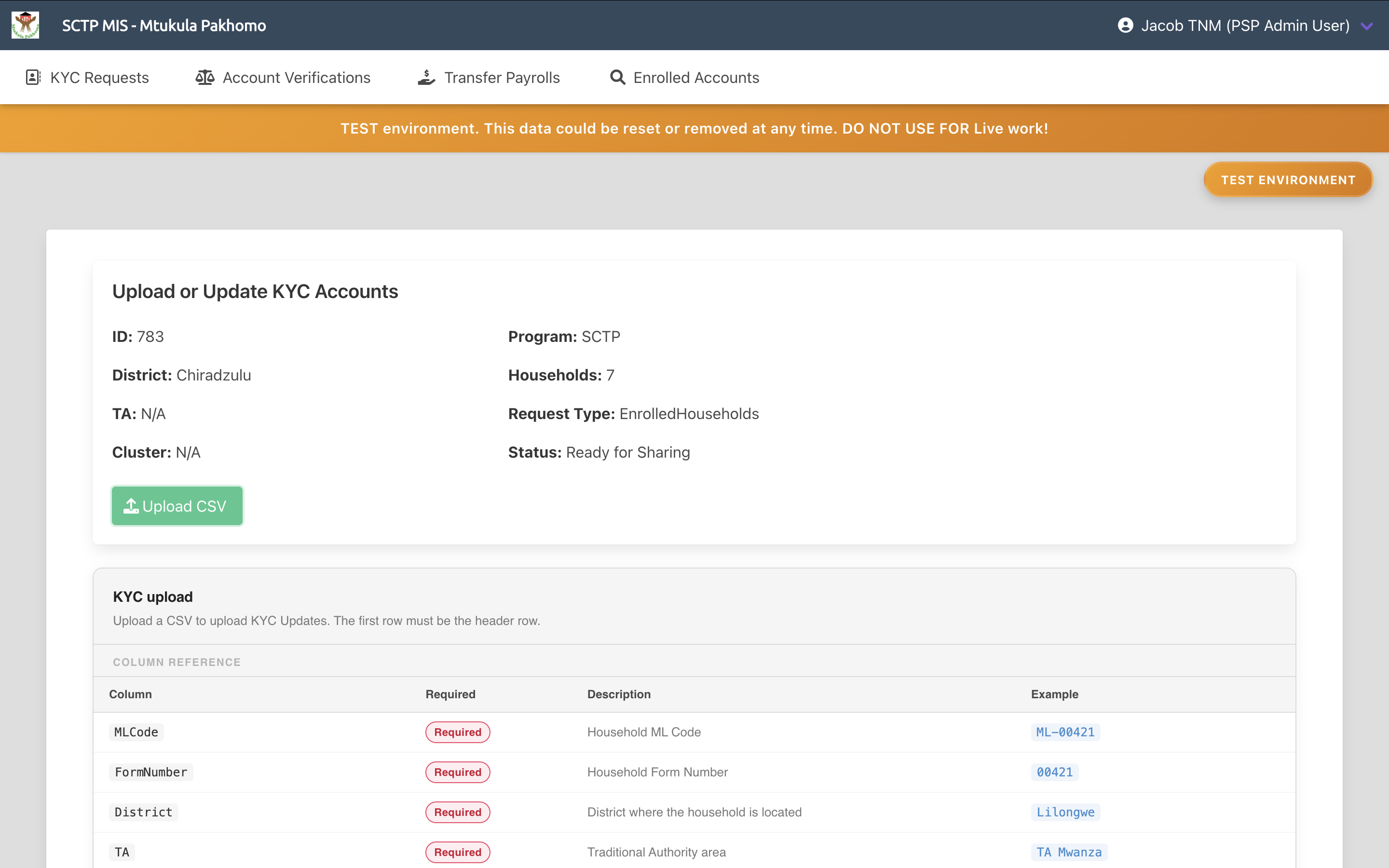
Screenshot: KYC upload page.
-
Start the upload.
-
Wait while the file is read and each record validated.
-
Read the result:
- On success, the records are staged against the request and returned to the programme for review.
- If the file is an Excel file, the system responds File not supported for this operation. Please upload a valid CSV file.
- If the file cannot be read, the system reports a parsing failure with the reason.
- Other failures are reported with an explanatory message.
¶ Part 6 — Dealing with failed records
-
Open the upload information for the request to see how the upload was processed.
-
If records failed validation, download the error file.
-
Open it and read what failed and why.
-
Correct those records in your source data.
-
Upload the corrected records. Records that already passed do not need to be sent again.
-
Repeat until no records fail.
¶ Part 7 — After you have responded
-
The programme reviews what you supplied and either approves or rejects the request.
-
Once approved, the account details are applied to the households and can be used for payment.
-
The programme may come back to you if account numbers look wrong. Respond promptly — households with unresolved accounts are excluded from that payment cycle.
-
Expect an account verification request next, asking you to confirm these accounts are real and active — see Completing Account Verifications.
¶ Required Information
| Item | Description | Required |
|---|---|---|
| Completed file | Your response, based on the downloaded list. Must be a CSV | Yes |
| Account name | The name each account is held in | Yes |
| Account number | The account or wallet number. Mobile wallets must be 12 digits | Yes |
| Account type | Mobile money or bank account | Yes |
¶ Validation Rules
- The file must be a CSV. Excel files are rejected with File not supported for this operation. Please upload a valid CSV file.
- The file must be readable and match the expected layout. A parsing failure is reported with the reason.
- A completed request accepts no further uploads. The system responds Cannot upload more accounts.
- The upload request must be valid. Otherwise: Invalid file upload request
- Each record is validated individually. Records that fail are listed in the error file; records that pass are staged.
- Uploading requires access to the PSP API; viewing and downloading requires post KYC results.
¶ What Happens Next
When you upload
- The file is stored and each record validated.
- Valid records are staged against the request.
- Invalid records are listed in an error file you can download.
When the programme reviews
- Programme staff check the account numbers, names and types.
- They approve the request, applying the accounts to the households, or reject it.
Why accuracy matters
The programme runs automated checks before every payment. Your data is tested for:
| Check | Effect if it fails |
|---|---|
| Household has no account number | Household excluded from the payroll. Cannot be waived |
| Mobile wallet number is not 12 digits | Household excluded from the payroll. Cannot be waived |
| The same account number appears twice with your organisation | Household excluded from the payroll. Cannot be waived |
| Account name duplicated with your organisation | Flagged. The programme may accept it |
| Account is inactive | Flagged. The programme may accept it |
The first three cannot be waived by the programme. A household affected by them receives nothing that cycle.
¶ Common Errors
| Message or situation | What it means and what to do |
|---|---|
| File not supported for this operation. Please upload a valid CSV file. | Save the file as CSV and upload again |
| Cannot upload more accounts | The request is complete. Contact the programme if you have further details to supply |
| Invalid file upload request | The upload was malformed. Refresh the page and try again |
| File parsing failed | The file layout does not match the template. Download the list again and work from it |
| Failed to upload KYC Updates | The upload did not complete. Check the file and try again |
| Failed to upload KYC Updates. Please contact System Administrator | An unexpected problem occurred. Report it to the programme |
| No requests appear | None have been raised for your organisation yet. Contact the programme |
| The KYC Requests menu is missing | Your PSP user profile may be inactive or missing the required permission |
| You see another organisation's data | Report this to the programme immediately. It should not be possible |
| Records keep failing validation | You may be using your own file rather than the downloaded list. Work from the download |
¶ Tips
- Always work from the downloaded list. Almost every failed upload comes from a provider building their own file.
- Count the digits on mobile wallet numbers. Partial numbers are the single most common reason households are dropped from a payment.
- Check account names against the household head or recipient the programme has listed. A mismatch sends money to the wrong person.
- Look for the same account number appearing twice before uploading. It is easier to catch here than after payment.
- Respond promptly. Payment cycles have deadlines, and households whose accounts arrive late are not paid that cycle.
- Upload only the corrections after a partial failure. Records that passed do not need resending.
- Keep a copy of what you uploaded. It is your record of what was supplied and when.
- Tell the programme if a household has no account with you. Silence looks like an incomplete response.
¶ Related Processes
- Completing Account Verifications — the next request you will usually receive
- Working with Transfer Payrolls and Disbursement Reports — where payment happens
- Searching Enrolled Accounts — to look up accounts your organisation holds
- Capturing and Updating KYC and Account Numbers — the programme-side view of this process